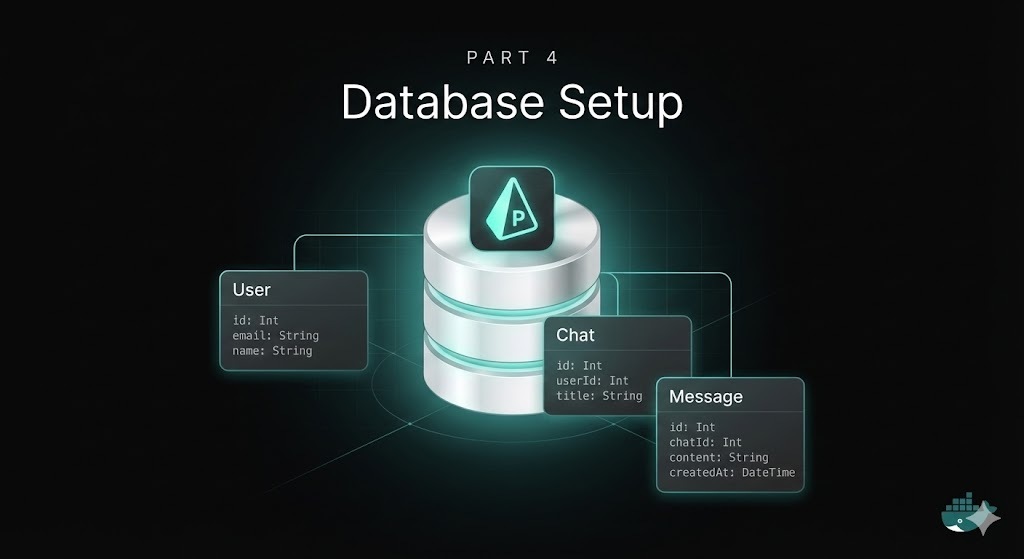
This is Part 4 of the tutorial series. If you haven’t read the previous parts, I recommend starting with Part 1: Introduction.
In Part 3, we set up the monorepo structure and scaffolded our React and NestJS applications. They run, but there’s no database yet. In this part, we’ll fix that.
We’re going to:
- Spin up PostgreSQL in Docker
- Create a shared database package with Prisma
- Define a minimal initial schema (starting with users)
- Generate the Prisma client and push the schema
By the end, you’ll have a fully typed database layer ready to be consumed by our API.
Setting Up PostgreSQL database
First, we need to have some database to work with. In this case I’m using docker, so I just asked Opus 4.5 for a docker-compose.yml with a postgres database using postgres 18, which is the latest version of postgres by now.
In case you are not familiar with docker-compose.yml files, this is a file that defines the services to run in the docker compose file which in our case is a postgres database, it also defines the environment variables to use, the ports to use and the volumes to use, the volumes are used to persist the data of the database in case the container is stopped or restarted otherwise the data will be lost after each restart.
Here is what the file would look like:
services:
  db:
    image: postgres:18-alpine
    container_name: ai-chatbot-database
    restart: unless-stopped
    environment:
      POSTGRES_DB: ai_chatbot
      POSTGRES_USER: ai_chatbot_user
      POSTGRES_PASSWORD: ai_chatbot_password
    ports:
      - "5434:5432"
    volumes:
      - postgres_data:/var/lib/postgresql/data
    healthcheck:
      test: ["CMD-SHELL", "pg_isready -U ai_chatbot_user -d ai_chatbot"]
      interval: 10s
      timeout: 5s
      retries: 5

volumes:
  postgres_data:
I’m using port 5434 on the host to avoid conflicts since I already have another project running on the default 5432 port. Feel free to change this if needed.
We can now start the database with the following command:
docker compose up -dAnd you can verify it’s running with:
docker compose psFor which we should see the container running and healthy.
Creating the Database Package
Now let’s create a shared package for our database layer. This will contain the Prisma schema and client in a separate package so that it can be reused by the API server and any future packages.
mkdir -p packages/db
cd packages/db
pnpm init
Update the package.json with the prisma dependencies and the scripts to generate, push, migrate and visualize the database:
{
  "name": "db",
  "version": "1.0.0",
  "private": true,
  "main": "./src/index.ts",
  "types": "./src/index.ts",
  "scripts": {
    "db:generate": "prisma generate",
    "db:push": "prisma db push",
    "db:migrate": "prisma migrate dev",
    "db:studio": "prisma studio"
  },
  "packageManager": "pnpm@10.24.0",
  "dependencies": {
    "@prisma/adapter-pg": "^7.2.0",
    "@prisma/client": "^7.2.0",
    "dotenv": "^16.4.5"
  },
  "devDependencies": {
    "prisma": "^7.2.0"
  }
}
Install the dependencies and initialize Prisma:
pnpm install
pnpx prisma init
This creates a prisma directory with a schema.prisma file.
Defining the Schema
Update prisma/schema.prisma with our initial schema which will have a users table:
generator client {
  provider = "prisma-client"
  output   = "../src/generated/prisma"
}

datasource db {
  provider = "postgresql"
}

model User {
  id        String   @id @default(uuid(7)) @db.Uuid
  email     String   @unique
  name      String?
  createdAt DateTime @default(now()) @map("created_at") @db.Timestamptz
  updatedAt DateTime @updatedAt @map("updated_at") @db.Timestamptz

  @@map("users")
}
Here are a few things to note about this schema:
@@map("table_name"): Maps the Prisma model name to a snake_case table name in the database. This keeps our TypeScript code using PascalCase while the database uses the more conventional snake_case. This is a convention that we will follow throughout the project, thus I will create a cursor rule to enforce and remember it.@map("column_name"): Same idea for column names, socreatedAtin TypeScript becomescreated_atin the database.@db.Timestamptz: Uses PostgreSQL’stimestamptz(timestamp with time zone) type for date fields.@db.Uuid: Stores IDs as native PostgreSQL UUID columns (instead of text).@default(uuid(7)): Generates a UUIDv7 by default for IDs. Will also create a cursor rule to enforce the use of UUIDv7 for ids throughout any new table we create in the project.
This is a very minimal schema for now, but it is enough to get the database layer working.
Why UUIDv7 (instead of UUIDv4, CUID, etc.)?
I want to take a moment to explain why I picked UUIDv7 for the table ids since many of you might be more familiar with UUIDv4, sequential integer ids, among others.
UUIDv7 represents a modern approach to identifier generation. Introduced in 2024 via RFC 9562, this UUID version generates identifiers based on the current timestamp combined with random data. Here are its key characteristics:
- Better index locality than UUIDv4: UUIDv4 is random, so inserts land all over a btree index (more page splits and cache churn). UUIDv7 is time-ordered, which is friendlier to Postgres indexes at higher write volumes.
- Standard + interoperable: UUIDs are universally understood across tools and languages. UUIDv7 still allows us to use native
uuidcolumns which keeps things simple for integrations.
For a deeper dive into UUIDv7’s characteristics and implementation details, I would recommend reading What May Surprise You About UUIDv7 which is a great article that explains the why and how of UUIDv7.
Environment Configuration
For setting up the environment variables for the database, we will create a .env file in the db package with the following variables:
DATABASE_URL="postgresql://ai_chatbot_user:ai_chatbot_password@localhost:5434/ai_chatbot"
# This is the connection string to the database, it is a standard postgresql connection string, update values if needed.

# Database connection pool settings (optional - defaults provided)
DB_MAX_CONNECTIONS=5
DB_MIN_CONNECTIONS=1
DB_CONNECTION_TIMEOUT=10000
DB_IDLE_TIMEOUT=60000
Creating the Database Client
Now create the entry point at src/index.ts:
import "dotenv/config"
import { PrismaPg } from "@prisma/adapter-pg"
import { PrismaClient } from "./generated/prisma/client"

const adapter = new PrismaPg({
  connectionString: process.env.DATABASE_URL,
  maxConnections: parseInt(process.env.DB_MAX_CONNECTIONS || '5', 10),
  minConnections: parseInt(process.env.DB_MIN_CONNECTIONS || '1', 10),
  connectionTimeout: parseInt(process.env.DB_CONNECTION_TIMEOUT || '10000', 10),
  idleTimeout: parseInt(process.env.DB_IDLE_TIMEOUT || '60000', 10)
})
export const prisma = new PrismaClient({ adapter })

export * from "./generated/prisma/client"
We’re using the @prisma/adapter-pg driver adapter here, which is required by Prisma version 7 for connecting to PostgreSQL databases. The pool configuration options help optimize connection management, especially important for resource-constrained environments like small VPS deployments.
Generating and Pushing
Generate the Prisma client:
pnpm db:generateThis creates the typed client in src/generated/prisma/. You should add this directory to .gitignore since it’s generated code:
echo "src/generated" >> .gitignoreRun migrations to create the tables in the database:
pnpm db:migrateThis will create the tables in the database.
Adding Root Scripts
Now we should update the root package.json of the monorepo to include database scripts and make them available from the root of the project:
{
  "scripts": {
    "dev": "turbo dev",
    "build": "turbo build",
    "lint": "turbo lint",
    "lint:fix": "turbo lint:fix",
    "type-check": "turbo type-check",
    "db:generate": "pnpm --filter db db:generate",
    "db:push": "pnpm --filter db db:push",
    "db:migrate": "pnpm --filter db db:migrate",
    "db:studio": "pnpm --filter db db:studio"
  }
}
Now you can run database commands from the root:
pnpm db:studio # Opens Prisma Studio in the browser to visualize the database schema and dataWhat We’ve Accomplished
- ✅ PostgreSQL in Docker: Isolated database environment that matches production
- ✅ Shared Database Package:
packages/dbwith Prisma schema and client - ✅ Initial Schema: A minimal
Usermodel ready to go - ✅ Type-Safe Client: Generated Prisma client with full TypeScript support
- ✅ Root Scripts: Easy database management from the monorepo root
The database layer is ready. In Part 5, we’ll set up authentication with Better Auth, including email/password login and Google OAuth, so users can securely access our application.
📁 Repository State: The current state of the codebase described in this article is available in the
feat/database-initbranch on GitHub.